Hyoword
중학효영단어 · Education · English vocabulary
10 words a day: master the 2,000 essential English words of Korean middle school with quizzes and review notifications!
An English vocabulary app for learning 2,000 essential words, 10 a day: 663 for middle-school year 1, 575 for year 2 and 762 for year 3 (grades 7–9 in Korea). Every word comes with phonetic symbols, its Korean meaning and pronunciation audio, and the audio is built into the app, so it plays without the internet. Test yourself by covering the word or the meaning, check what you know with 20-question quizzes and dictation, and let review notifications bring back the words you got wrong.
Hyoword at a glance
- Essential middle-school English words
- 2,000
- Daily study load
- 10 words
- Quiz questions
- 20
- Sign-up
- Not needed
Features
What Hyoword can do
See, listen, cover, solve, recall. We tied these steps into one cycle so you can repeat a short study session every day.
-
2,000 essential words by grade
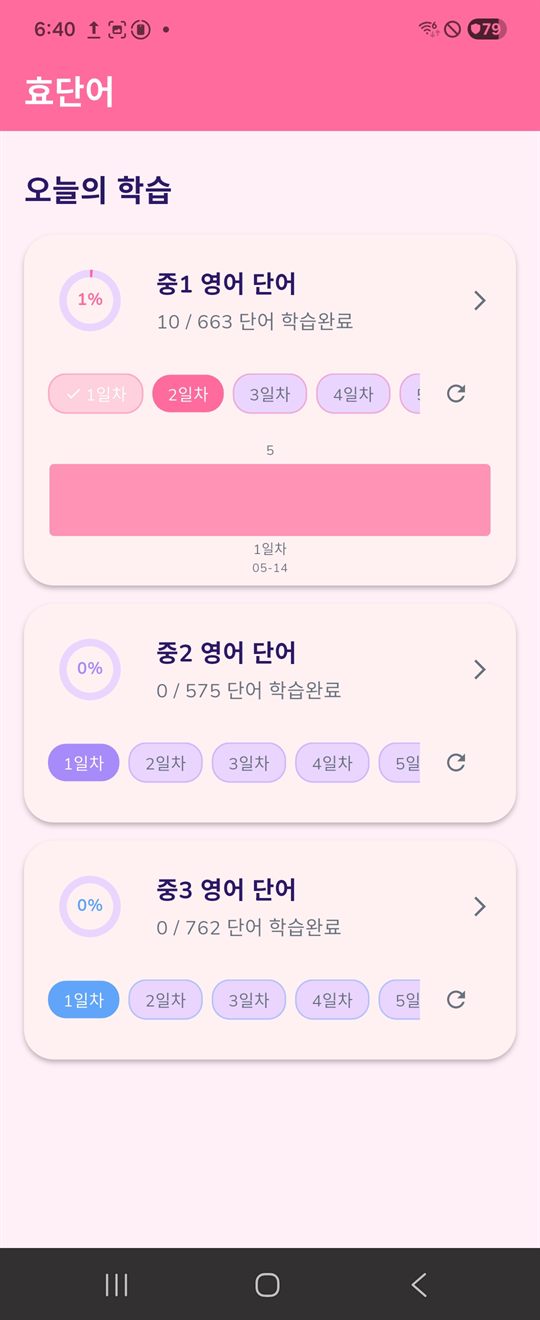
With 663 words for year 1, 575 for year 2 and 762 for year 3, progress is tracked separately for each grade. Every word has its English spelling, phonetic symbols, Korean meaning and pronunciation audio.
-
10 words a day, one day at a time
The words are split into days of 10 words each. Pick the day you want from the day chips on a grade card, and see how far you have come from the progress percentage.
-
Cover the word · Cover the meaning
Cover the words or the meanings, like turning a page, and try to recall them yourself. It is a self-test that shows you right away whether you have memorized them.
-
Offline pronunciation audio and AUTO repeat
The pronunciation audio is built into the app, so it plays instantly without the internet. Turn on AUTO mode to hear each word repeated as many times as you set (1–10).
-
20-question multiple-choice quiz
Take a 20-question quiz with four options per question on the words you learned today. The results screen shows the number of correct answers, your score, and the questions you got wrong along with the correct answers.
-
Dictation (optional)
Turn on dictation in settings, and after the quiz you type today’s words on the keyboard to check your spelling as well. No speech recognition or microphone is used.
-
Study charts and levels
Quiz and dictation scores for each day are shown as a bar chart, and as your correct answers add up, your level for each grade (Lv.1–99) goes up.
-
Review notifications and notification quizzes
The app picks wrong and studied words first (or other words from the word list if you have no study history yet) and brings them back as review card notifications, then a little later sends a three-option quiz you answer just by tapping the buttons in the notification. Notifications are created only on the device.
-
Settings that fit you
Choose the name shown in the home greeting, the AUTO repeat count and whether AUTO is on, whether dictation is on, and one of five theme colors.
-
Reset progress by grade
If you want to start over, the reset button on a grade card clears that grade’s progress and scores so you can begin again.
-
Remove Ads (one-time purchase)
The app is free and shows banner and interstitial ads. Pay once with “광고 제거 구매” (Buy Remove Ads) in settings and ads are no longer shown; even if you reinstall, the purchase is restored from your Google Play purchase history.
Screenshots
A look at the app
These screens are from development and may differ slightly from the released version.
Home · Progress by grade 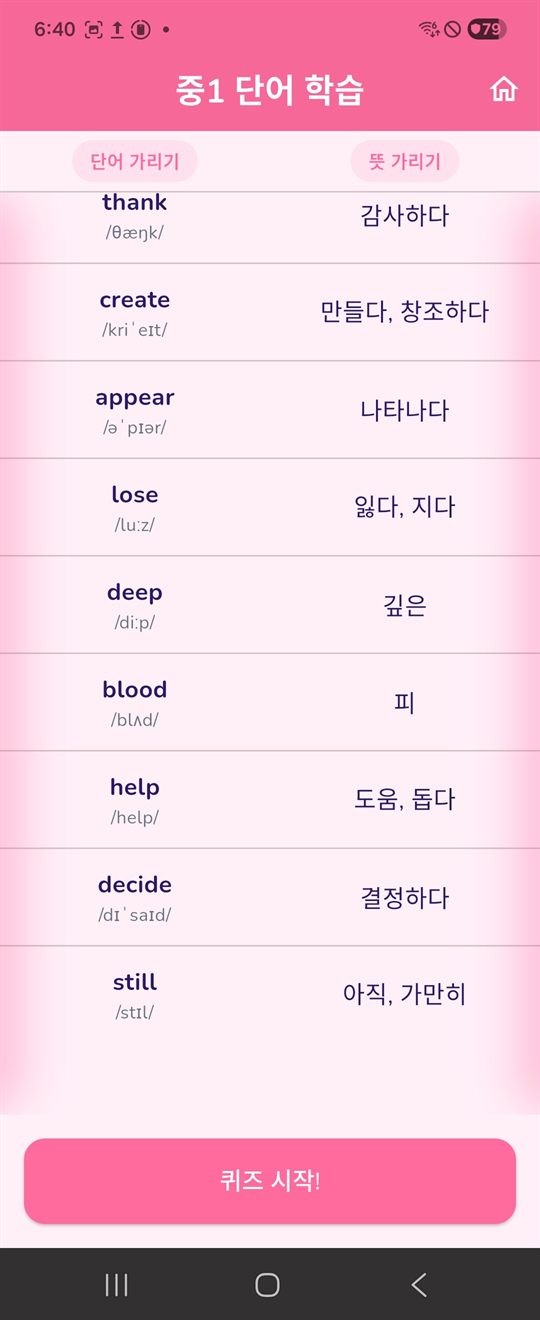
Study by covering words or meanings 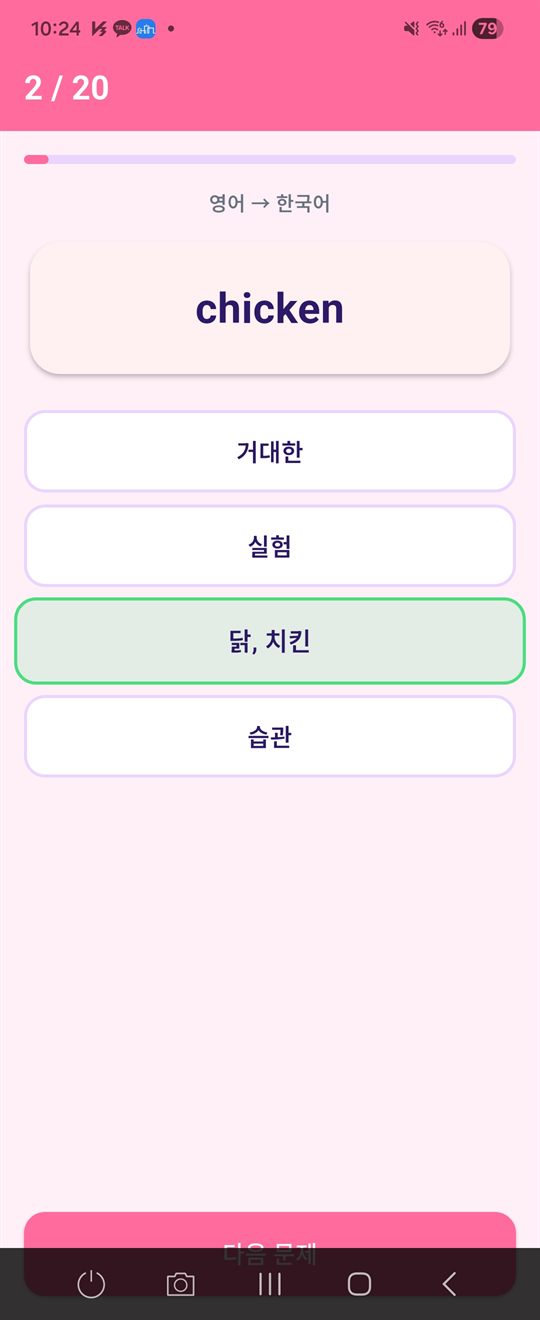
20-question multiple-choice quiz 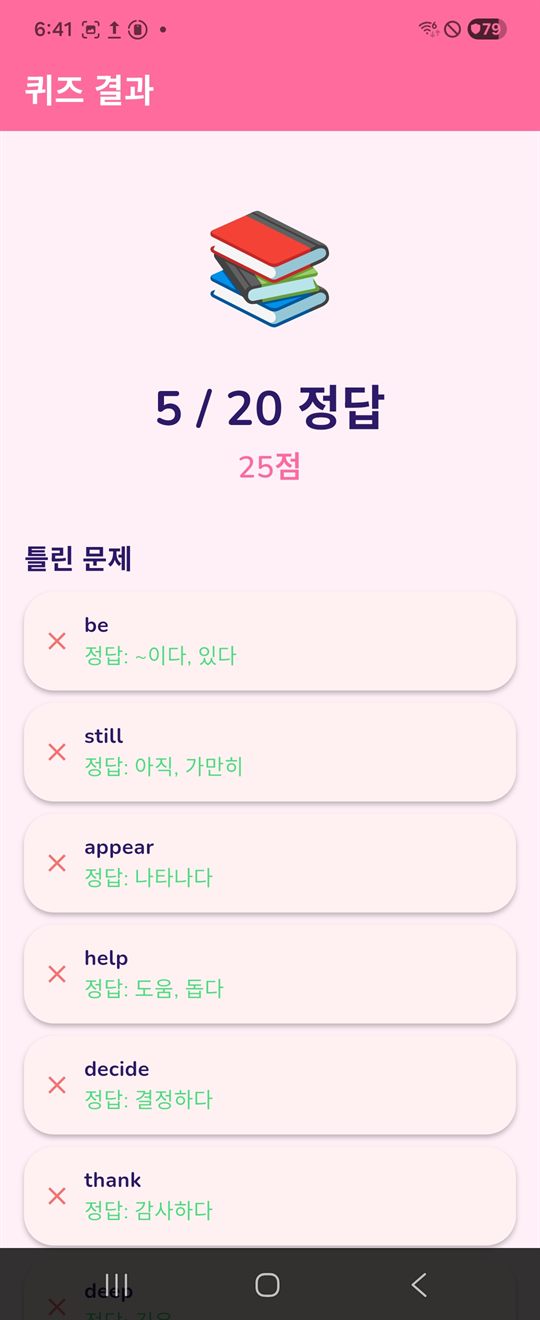
Results · Wrong answers
Daily routine
How a day of study works
A set of 10 words doesn’t take long to finish. Doing every grade from year 1 to year 3 adds up to about 200 days of study.
Step 1
See and listen
Look at today’s 10 words with their phonetic symbols, meanings and pronunciation audio. AUTO can play them on repeat.
Step 2
Cover and recall
Cover the words or the meanings and try to recall them to check whether you have memorized them.
Step 3
Quiz and dictation
Check today’s words with a 20-question multiple-choice quiz and, if you like, dictation.
Step 4
Review with notifications
Words you got wrong come back as review card notifications and notification quizzes.
For you
Who it’s for
Students about to start middle school
Start step by step with the year 1 words, 10 a day, and build the core vocabulary of middle-school English ahead of time.
Middle-school students working on school exams and core vocabulary
Check the essential words for each grade with quizzes and dictation, and learn the words you got wrong through repeated notifications.
Year 3 students who need a full review before high school
Quickly go through the 2,000 words for years 1–3 grade by grade, and recheck only the words you are weak on.
Students who want short, steady daily study
With only 10 words at a time the load is light, and the daily charts and levels make your consistency visible.
Parents helping their children learn English
It can be used right away with no sign-up and no personal details, and study records are never sent to our servers.
Students who study where the internet is unreliable
The words and pronunciation audio are built into the app, so studying, quizzes and listening to pronunciation all work offline. (Showing ads and making purchases require the internet.)
Privacy
How we handle your information
Hyoword has no sign-up, and ReOn Solution does not run any servers of its own. However, the ads that keep the app free (Google AdMob) and payments (Google Play) are processed through Google.
| Information | Stored in | Purpose |
|---|---|---|
| Study progress, quiz and dictation scores (with dates), lists of wrong, reviewed and studied words | Your device (never sent to our servers) | Showing progress, charts and levels; review notifications |
| Profile name (optional), app settings | Your device (never sent to our servers) | Home greeting; keeping your preferences |
| Advertising ID, IP address (from which approximate location may be inferred), device information, ad impressions and clicks, diagnostics | Google (collected directly by the AdMob SDK) | Serving and measuring ads, fraud prevention |
| “Remove Ads” purchase history | Your Google Play account + a purchase flag on your device | Providing and restoring Remove Ads |
If Android device backup is turned on, app data (profile name, study records, etc.) may be included in your Google account backup. This backup is stored in your account, and we cannot see it. Also, buying “Remove Ads” only stops ads from being shown: the Google ads SDK still initializes and communicates with Google when you start the app.
FAQ
Common questions
Does it cost anything?
Downloading the app and all learning features are free. A banner ad appears on the home screen, and an interstitial ad appears occasionally (at least 3 minutes apart) when you leave the quiz results screen. If you would rather use the app without ads, just pay once with “광고 제거 구매” (Buy Remove Ads) in settings. The price is shown on the Google Play payment screen, and Google Play processes the payment.
Can I use it without the internet?
Yes. The word data and pronunciation audio files are built into the app, so studying, quizzes, dictation, listening to pronunciation and review notifications all work offline. Showing ads and buying or restoring “Remove Ads” require an internet connection.
Do I need to sign up or log in?
No. Install the app and you can start right away. The “프로필 이름” (Profile name) in settings is an optional entry used in the home greeting; it is not an account and is stored only on the device. You can use a nickname instead of your real name.
If I change phones, will my study records come with me?
We do not keep records on our servers, so the app has no sync feature of its own. However, if Android device backup is turned on, your records may be carried over through your Google account backup or a device-to-device data transfer. This is an Android and Google feature, so results may vary by device and settings. A “Remove Ads” purchase is restored automatically when you install the app with the same Google account.
How do I delete my study records?
To delete them grade by grade, tap the reset (↻) button on a grade card on the home screen. To delete all data, go to Settings › Apps › 중학효영단어 › Storage › Clear data or uninstall the app. Detailed steps, including how to delete the Google backup copy, are in the data deletion guide.
What permissions does it use?
It uses the Notifications permission (requested at launch on Android 13+) to show review notifications, plus permissions to keep scheduled notifications after a reboot and to vibrate for notifications. The internet, advertising ID and Google Play Billing permissions are also included for ads and payments. It does not use location, camera, microphone, contacts or photo permissions. Even if you deny the notification permission, you can still study as usual. For the full list, see the permissions section of the Privacy Policy.
I bought “Remove Ads”, but I’m seeing ads again.
The app restores your purchase history from Google Play when it starts. Check that you are signed in to the Play Store with the Google account you used for the purchase and that you are connected to the internet, then restart the app. If that does not fix it, please contact us at the email address below. Refunds follow the Google Play refund policy.
How do I contact you?
Please send bug reports, suggested word corrections and privacy questions to [email protected]. Adding [Hyoword] to the subject line helps us check your message faster.
Related documents
Privacy Policy
Information processed, third-party SDKs, permissions, protection of users under 14, and how to exercise your rights
Terms of Service
The service, ads and in-app purchases, refunds, notes on the learning content, and disclaimers
Account & Data Deletion
Why there is no account, and how to delete device data, backups and the advertising ID